Showing posts with label trailing spaces. Show all posts

Tuesday, 15 August 2017

Highlighting trailing spaces with Data Validation

In part 2 of our trilogy about trailing spaces (part 1 is just here) we look at how to identify trailing spaces if you have them in your data sets. As discussed in part 1, they're hard to spot, as we can't see spaces with the naked eye at the end of a cell. In this post, we'll look at how to identify them using Conditional Formatting.

First, I have some "raw" data, which contains some trailing spaces which I can't currently see:


Now, click on Conditional Formatting on the Home tab:


In the drop-down, choose Highlight Cells Rules then More Rules:


Then, in the Conditional Formatting dialogue, choose the second option: Format only cells that contain then specific text, ending with and then insert a space in the text box:


Then click the Format button and format these highlighted cells as you like. For me, the finished data then looks like this:


If you'd like to have a go at this yourself, you can download an Excel file with the completed example, and a raw data set for you to try yourself. Click here to download the file.

Wednesday, 21 June 2017

Using Data Validation to prevent users entering trailing spaces

A question came up from an attendee on a recent Working With Data In Excel live e-learning course, which is a common request. Today's blog post will explain how to prevent users from inserting preceding or trailing spaces into a cell.

Why is this a problem
Imagine you have a column of data, containing the values "Red", "Green" and "Blue", which a user has entered manually. Except the user has entered some extra spaces after some of the values so that your column of data (column A) looks like this:

   Red
   Green
   Green
   Blue
   Green[space]
   Blue
   Red[space]
   Red
   Green

I then create a formula to count the number of cells containing the value "Green", like so:

   =COUNTIF(A:A,"Green")

How many will there be? It will tell me there are 2. Why? Because "Green[space]" is not the same as "Green" in Excel.

So as you can see, it becomes important to prevent users adding extra spaces after their data.

How do we stop them?

We can prevent leading or trailing spaces using Custom Data Validation. Here are the steps to work through...
  1. Select the column you want to protect.
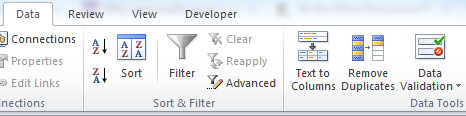
  2. Click on "Data Validation" on the Data tab.
  3. In the dialogue that pops up, choose "Custom".
  4. Enter the following formula into the box, replacing the references to "A1" with the first cell in your range: =TRIM(A1)=A1
Then play with it!

A caution...
Unfortunately, Data Validation in Excel doesn't prevent people pasting incorrect values into the cell - only typing manually. There are 2 work-arounds for this, which we'll look at in future blog posts:
  1. Prevent people pasting anything into the sheet using a Macro, or
  2. Set up Conditional Formatting to show if cells have trailing spaces which have been pasted in.
Keep an eye on the blog for these other 2 parts, or why not sign up for our free e-tips on our website and get them straight to your inbox?

Get our Excel tips direct to your inbox and make sure you never miss a top tip - fill in your details just here.